 Built on Bubble
Built on Bubble
Built on Bubble


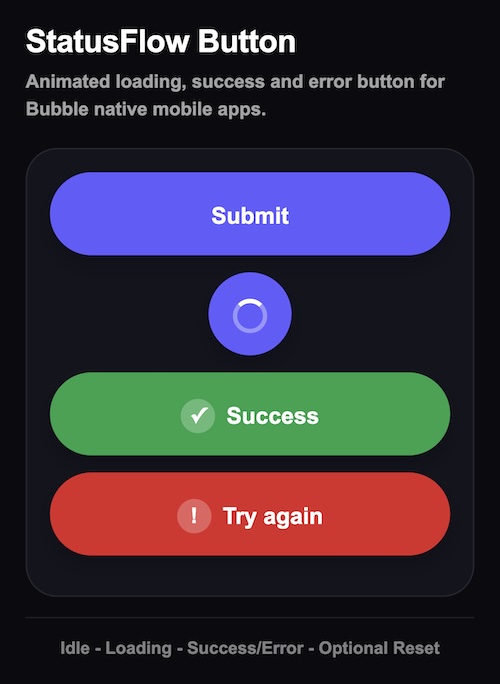
Width: 300 - 360px
Height: 64px
button_height = 58
label = Continue
success_label = Success
error_label = Try again
loading_label = optional
loading_label
is empty, the button will only show the spinner during loading.
background_color = #111111
loading_color = #111111
success_color = #16A34A
error_color = #DC2626
text_color = #FFFFFF
When StatusFlow Button's button_pressed
→ Run your action
StatusFlow Button → Set Success
delay_milliseconds = 800
auto_reset = yes
reset_after_milliseconds = 2000
button_pressed
→ Create a thing
→ Set Success
StatusFlow Button → Set Error
delay_milliseconds = 800
auto_reset = yes
reset_after_milliseconds = 2000
button_pressed
→ Run API call
→ Only when API result is empty
→ Set Error
StatusFlow Button → Reset
delay_milliseconds = 1000
When StatusFlow Button's button_pressed

Step 1:
Create a new thing

Step 2:
StatusFlow Button → Set Success
Only when Result of step 1 is not empty
delay_milliseconds = 800
auto_reset = yes
reset_after_milliseconds = 2000

Step 3:
StatusFlow Button → Set Error
Only when Result of step 1 is empty
delay_milliseconds = 800
auto_reset = yes
reset_after_milliseconds = 2000
Idle → Loading → Success/Error → Reset
auto_reset
is set to no, the button will stay in the success or error state until you manually run the Reset action.disable_after_success
is set to yes, the button cannot be pressed again after success.disable_after_error
is set to yes, the button cannot be pressed again after error.
| Name | Provider / Domain | Expiration | Description |
|---|---|---|---|
| meta_u1main | .bubble.io | Session | |
| cf_clearance | .clutch.co | 1 year | This cookie is used by the CloudFlare service to identify trusted web traffic and override any security restrictions based on the visitor's IP address. It is essential for supporting a website's security features and in providing protection against malicious visitors. |
| __cf_bm | .linkedin.com | 29 minutes 57 seconds | This cookie is used to distinguish between humans and bots. This is beneficial for the website, in order to make valid reports on the use of their website. |
| meta_live_u2main | .bubble.io | 3 days | |
| _tt_enable_cookie | .bubble.io | 2 months 4 weeks | This cookie is used to remember the user's preferences regarding the use of cookies on the website. |
| CookieScriptConsent | .bubble.io | 1 year 1 month | This cookie is used by Cookie-Script.com service to remember visitor cookie consent preferences. It is necessary for Cookie-Script.com cookie banner to work properly. |
| __cf_bm | .lu.ma | 29 minutes 58 seconds | This cookie is used to distinguish between humans and bots. This is beneficial for the website, in order to make valid reports on the use of their website. |
| VISITOR_PRIVACY_METADATA | .youtube.com | 5 months 4 weeks | This cookie is used to store the user's consent and privacy choices for their interaction with the site. It records data on the visitor's consent regarding various privacy policies and settings, ensuring that their preferences are honored in future sessions. |
| meta_live_u2main.sig | .bubble.io | 3 days | |
| __cf_bm | .lumacdn.com | 29 minutes 58 seconds | This cookie is used to distinguish between humans and bots. This is beneficial for the website, in order to make valid reports on the use of their website. |
| __cf_bm | .clutch.co | 30 minutes | This cookie is used to distinguish between humans and bots. This is beneficial for the website, in order to make valid reports on the use of their website. |
| meta-firebase_workflow | .bubble.io | 59 minutes 51 seconds | |
| __cf_bm | .t.co | 29 minutes 57 seconds | This cookie is used to distinguish between humans and bots. This is beneficial for the website, in order to make valid reports on the use of their website. |
| cf_clearance | .luma.com | 1 year | This cookie is used by the CloudFlare service to identify trusted web traffic and override any security restrictions based on the visitor's IP address. It is essential for supporting a website's security features and in providing protection against malicious visitors. |
| __cf_bm | .twitter.com | 29 minutes 57 seconds | This cookie is used to distinguish between humans and bots. This is beneficial for the website, in order to make valid reports on the use of their website. |
| __cf_bm | .producthunt.com | 29 minutes 59 seconds | This cookie is used to distinguish between humans and bots. This is beneficial for the website, in order to make valid reports on the use of their website. |
| __session | .gitbook.com | 1 year 1 month | This cookie is used to maintain an anonymized user session by the server. |
| __cf_bm | .luma.com | 29 minutes 57 seconds | This cookie is used to distinguish between humans and bots. This is beneficial for the website, in order to make valid reports on the use of their website. |
| __cf_bm | .x.com | 29 minutes 59 seconds | This cookie is used to distinguish between humans and bots. This is beneficial for the website, in order to make valid reports on the use of their website. |
| AWSALBCORS | tools.pingdom.com | 1 week | For continued stickiness support with CORS use cases after the Chromium update, we are creating additional stickiness cookies for each of these duration-based stickiness features named AWSALBCORS (ALB). |
| __cf_bm | .calendly.com | 29 minutes 52 seconds | This cookie is used to distinguish between humans and bots. This is beneficial for the website, in order to make valid reports on the use of their website. |
| li_gc | .linkedin.com | 5 months 4 weeks | Used to store guest consent to the use of cookies for non-essential purposes |
| Name | Provider / Domain | Expiration | Description |
|---|---|---|---|
| GAESA | manual.bubble.io | 4 weeks 2 days | This cookie is typically associated with the collection and analysis of statistical data to improve site performance. It may track details such as the number of visitors, the source of the visit, and the pages visited in an anonymous form. |
| _ga_CMMEJQJJ8J | .bubble.io | 1 year 1 month | This cookie is used by Google Analytics to persist session state. |
| ajs_anonymous_id | .bubble.io | 1 year | These cookies are generally used for Analytics and help count how many people visit a certain site by tracking if you have visited before. This cookie has a lifespan of 1 year. |
| _ga_Y168TZXEQ5 | .bubble.io | 1 year 1 month | This cookie is used by Google Analytics to persist session state. |
| analytics_session_id.last_access | .bubble.io | 11 months 4 weeks | This cookie is used to store the time of the last access by a user in an analytics session, helping in understanding user engagement and the effectiveness of the website content. |
| _ga | .bubble.io | 1 year 1 month | This cookie name is associated with Google Universal Analytics - which is a significant update to Google's more commonly used analytics service. This cookie is used to distinguish unique users by assigning a randomly generated number as a client identifier. It is included in each page request in a site and used to calculate visitor, session and campaign data for the sites analytics reports. By default it is set to expire after 2 years, although this is customisable by website owners. |
| _ttp | .bubble.io | 3 months | This cookie is used to track user interaction and behavior on the website for site performance and usage analysis. This information is used to improve the user experience and optimize the website's functionality. |
| _ga_CEPZJCHM3K | .bubble.io | 1 year 1 month | This cookie is used by Google Analytics to persist session state. |
| _ga_5Q4JP8E2X4 | .bubble.io | 1 year 1 month | This cookie is used by Google Analytics to persist session state. |
| m | m.stripe.com | 1 year 1 month | This cookie is generally used for performance and optimization of payment processing services, facilitating caching of content on the browser to make pages load faster. |
| analytics_session_id | .bubble.io | 11 months 4 weeks | This cookie tracks user behavior throughout the session on the website, collecting data such as how long a visitor stays on a page and what links they click on. This information is used to improve user experience and website performance. |
| _ga_BFPVR2DEE2 | .bubble.io | 1 year 1 month | This cookie is used by Google Analytics to persist session state. |
| _ttp | .tiktok.com | 2 months 4 weeks | This cookie is used to track user interaction and behavior on the website for site performance and usage analysis. This information is used to improve the user experience and optimize the website's functionality. |
| Name | Provider / Domain | Expiration | Description |
|---|---|---|---|
| _gcl_au | .bubble.io | 2 months 4 weeks | Used by Google AdSense for experimenting with advertisement efficiency across websites using their services |
| YSC | .youtube.com | Session | This cookie is set by YouTube to track views of embedded videos. |
| guest_id_ads | .twitter.com | 1 year 1 month | This cookie is associated with Twitter's advertising services. It is used to identify and track the website visitor to display personalized ads based on the user's preferences and interaction with the website. |
| lidc | .linkedin.com | 1 day | This is a Microsoft MSN 1st party cookie that ensures the proper functioning of this website. |
| MUID | .bing.com | 1 year | This cookie is widely used my Microsoft as a unique user identifier. It can be set by embedded microsoft scripts. Widely believed to sync across many different Microsoft domains, allowing user tracking. |
| guest_id_marketing | .twitter.com | 1 year 1 month | This cookie is used to identify a visitor across visits and devices. It allows the website to present the visitor with relevant advertisement based on the visitor's preferences. |
| VISITOR_INFO1_LIVE | .youtube.com | 5 months 4 weeks | This cookie is set by Youtube to keep track of user preferences for Youtube videos embedded in sites;it can also determine whether the website visitor is using the new or old version of the Youtube interface. |
| guest_id | .x.com | 1 year 1 month | This cookie is set by Twitter to identify and track the website visitor. |
| bcookie | .linkedin.com | 1 year | This is a Microsoft MSN 1st party cookie for sharing the content of the website via social media. |
| _fbp | .bubble.io | 2 months 4 weeks | Used by Facebook to deliver a series of advertisement products such as real time bidding from third party advertisers |
| personalization_id | .twitter.com | 1 year 1 month | This cookie carries out information about how the end user uses the website and any advertising that the end user may have seen before visiting the said website. |
| _uetvid | .bubble.io | 1 year | This is a cookie utilised by Microsoft Bing Ads and is a tracking cookie. It allows us to engage with a user that has previously visited our website. |
| _uetsid | .bubble.io | 1 day | This cookie is used by Bing to determine what ads should be shown that may be relevant to the end user perusing the site. |
| guest_id | .twitter.com | 1 year 1 month | This cookie is set by Twitter to identify and track the website visitor. |
| Name | Provider / Domain | Expiration | Description |
|---|---|---|---|
| __stripe_sid | .bubble.io | 29 minutes 59 seconds | This cookie is set by Stripe to manage and process payments securely, allowing temporary storage of session related information during a users visit to the website. |
| __stripe_mid | .bubble.io | 1 year | This cookie is set by Stripe to distinguish users and enable secure payment processing during interactions with the website. |
| recent_write | bubble.io | Session | This cookie is used to record the most recent interaction by the user to improve functionality and user experience on the website. |
| ajs_anonymous_id | demo.arcade.software | 1 year | These cookies are generally used for Analytics and help count how many people visit a certain site by tracking if you have visited before. This cookie has a lifespan of 1 year. |
| Name | Provider / Domain | Expiration | Description |
|---|---|---|---|
| __Secure-YNID | .youtube.com | 5 months 4 weeks | |
| __Secure-ROLLOUT_TOKEN | .youtube.com | 5 months 4 weeks | |
| CrossDomainCookieScriptConsent_239 | .crossdomain.cookie-script.com | 1 year 1 month | |
| ttcsid_CRGSJIJC77UAMBH9S77G | .bubble.io | 3 months 4 days | |
| bubble-certifications_live_u2main | .certification.bubble.io | 3 days | |
| ttcsid_D6UMEIRC77U8BUJPT1G0 | .bubble.io | 2 months 4 weeks | |
| flusk_u1main | .scan.bubble.io | Session | |
| EXP_4ddc8ad920_identity | .bubble.io | 1 year | |
| bubble-certifications_live_u2main.sig | .certification.bubble.io | 3 days | |
| __cf_ob | luma.com | Session | |
| flusk_live_u2main.sig | .scan.bubble.io | 3 days | |
| bubble-certifications_u1main | .certification.bubble.io | Session | |
| _vb | bubble.io | 4 weeks 2 days | |
| _twpid | .bubble.io | 1 year | |
| flusk_live_u2main | .scan.bubble.io | 3 days | |
| __birdie_snippet_status | .bubble.io | 58 seconds | |
| ttcsid | .bubble.io | 3 months 4 days | |
| muc_ads | .t.co | 1 year 1 month |