MARKETPLACE
PLUGINS
DOCX EDITOR PRO (BETA)
DOCX Editor Pro (BETA) logo

DOCX Editor Pro (BETA)

Published March 2026
   •    Updated today

Plugin details

DOCX Editor Pro
A powerful in-browser .DOCX document editor for Bubble apps that allows users to open, edit, save, and download Microsoft Word documents directly inside your application.

This plugin brings a modern document editing experience similar to Word Online or Google Docs directly into Bubble.

Perfect for building:

• Contract editors
• Proposal builders
• Document management systems
• Form-filled DOCX templates
• Document automation tools

---

Editor Preview
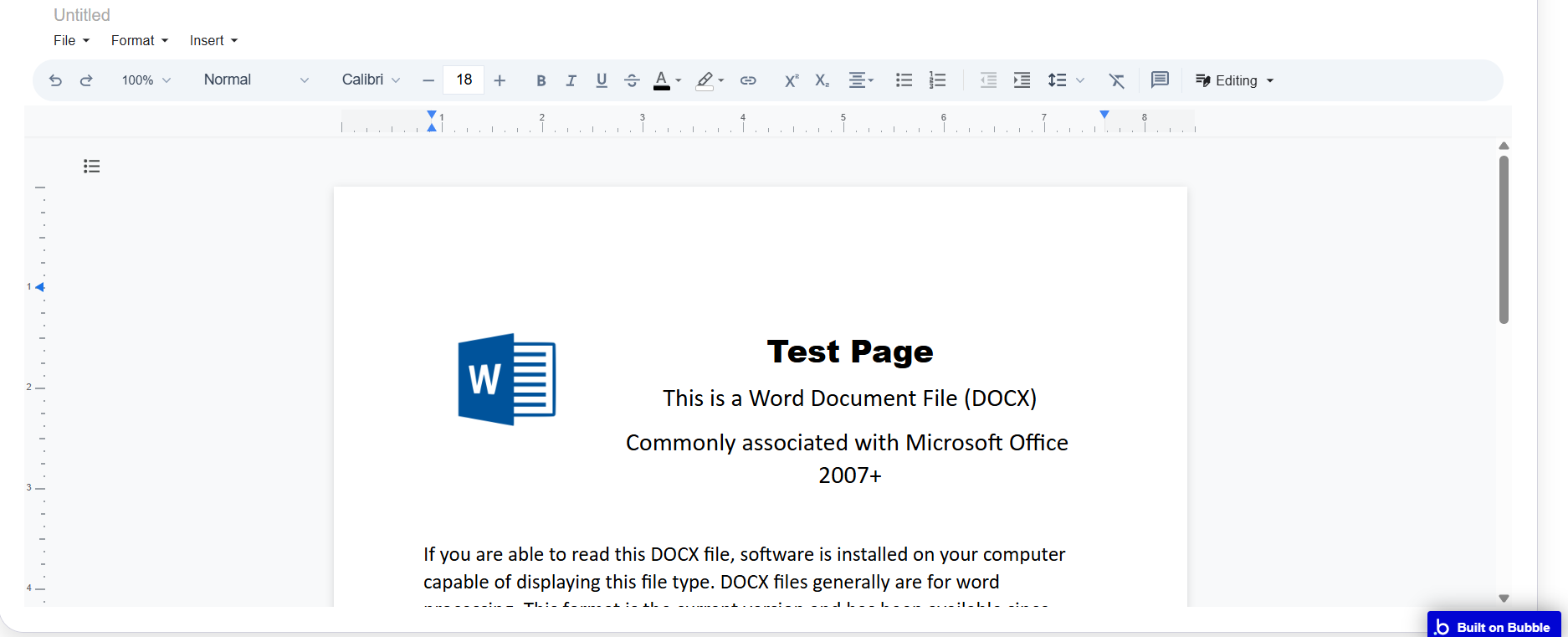


The editor includes a formatting toolbar, document title bar, zoom controls, page navigation, and document export features.

---

Live Demo

▶ Open Live Demo

---

Demo Editor Page

▶ View Editor Setup

This page shows how the plugin is configured inside the Bubble editor.

---

Key Features

• Edit Microsoft Word documents directly in Bubble
• Save edited DOCX files to Bubble File Manager
• Download documents instantly
• Word-style formatting toolbar
• Custom logo support in the title bar
• Editable document title
• Zoom controls
• Print support
• Upload progress tracking
• Multiple editors supported on the same page

---

Use Cases

• Contract editing platforms
• Proposal builders
• Document automation tools
• Internal document systems
• Template-driven document generation

$75

One time  •  Or  $10/mo

stars   •   0 ratings
0 installs  
This plugin does not collect or track your personal data.

Platform

Web

Contributor details

free Codex logo
free Codex
Joined 2023   •   13 Plugins
View contributor profile

Instructions

DOCX Editor Pro – Setup Instructions
Follow the steps below to add the document editor to your Bubble app.

---

1. Add the Editor to Your Page

Drag the DOCX Editor Pro element onto your page.

Set the following fields:

Document URL
The URL of the DOCX file you want to load.

Document Name
The name displayed in the editor title bar.

Logo URL
Optional logo displayed in the title bar.

---

2. Configure Editor Options

You can customize the editor interface using these fields:

Author
Name used for document comments and metadata.

Mode
Possible values:

• editing
• suggesting
• viewing

Read Only
Disable editing if enabled.

Show Toolbar
Toggle the formatting toolbar.

Show Ruler
Display Word-style rulers.

Show Zoom Control
Display zoom control in the toolbar.

Show Print Button
Show a print button.

Show Outline Panel
Display the document outline navigation.

Initial Zoom
Initial zoom level (example: 1, 1.25, 0.8).

---

3. Save the Edited Document

Create a workflow:

Button Clicked
→ DOCX Editor Pro → Save Document

The document will be exported and uploaded to Bubble.

The saved file URL will appear in the state:

docx_url

---

4. Download the Document

Create a workflow:

Button Clicked
→ DOCX Editor Pro → Download Document

The edited DOCX file will download to the user's device.

---

5. Track Upload Progress

You can track upload progress using the following states:

upload_progress
Upload progress from 0 to 1.

uploading
Indicates if a document is currently uploading.

---

6. Available Element States

docx_url – URL of the saved document
upload_progress – Upload progress (0–1)
uploading – Upload status
current_page – Current page number
total_pages – Total document pages
error – Error message if an issue occurs

---

7. Available Element Actions

Save Document
Exports and uploads the document.

Download Document
Downloads the edited document.

Load Document
Loads a new DOCX file into the editor.

Focus Editor
Places the cursor inside the editor.

Set Zoom
Change the zoom level.

Print Document
Open the browser print dialog.


---

Notes

• Only DOCX files are supported.
• File uploads must be enabled in plugin settings.
• Large documents may take a few seconds to render depending on complexity.

---

Tip: Combine this plugin with Bubble workflows to generate DOCX templates automatically, allow users to edit them, and store finalized documents in your database.

Types

This plugin can be found under the following types:
Element   •   Event   •   Action

Categories

This plugin can be found under the following categories:
Productivity   •   Technical   •   Data (things)   •   Media   •   Visual Elements

Resources

Support contact
Tutorial

Rating and reviews

No reviews yet

This plugin has not received any reviews.
Bubble