Post any file to Slack. Up to 10 files at once, ~100 MB combined, with caption, in a specific channel or thread. Also supports thread chaining and private file hosting.
This plugin is a small companion to Bubble's official Slack plugin (which doesn't offer the option to post files or attach them to messages).
We use Slack's current file upload API (which replaces the deprecated files.upload method).
Demo App ·
See in Bubble Editor ·
Full user documentation
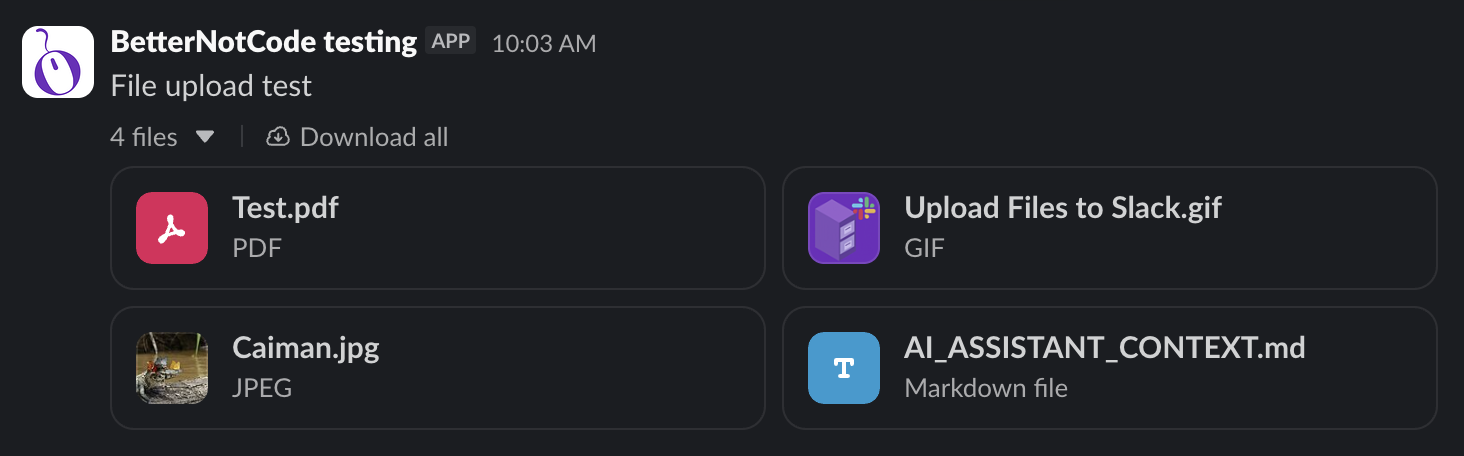 The plugin offers two actions-> Upload a Single File
: to post a file in a specific Slack channel (and, if needed, a specific thread).
-> Upload Multiple Files: to send 2-10 files in one Slack message with 2-10 attachments.
It posts to Slack directly using your bot token.
You can also use the plugin as per-user private storage: pass a direct-message channel ID instead of a channel ID and the files are hosted in Slack (visible only to that one user).

We’re compatible with the official Slack plugin: you can use Bubble’s Slack plugin for chat messages and user login, and our plugin for file uploads.
We also recommend the free
Multi-File Uploader - Dropzone plugin so your end-users can easily upload multiple files (drag and drop, browse) with our “Upload Multiple Files” action.
What you can configure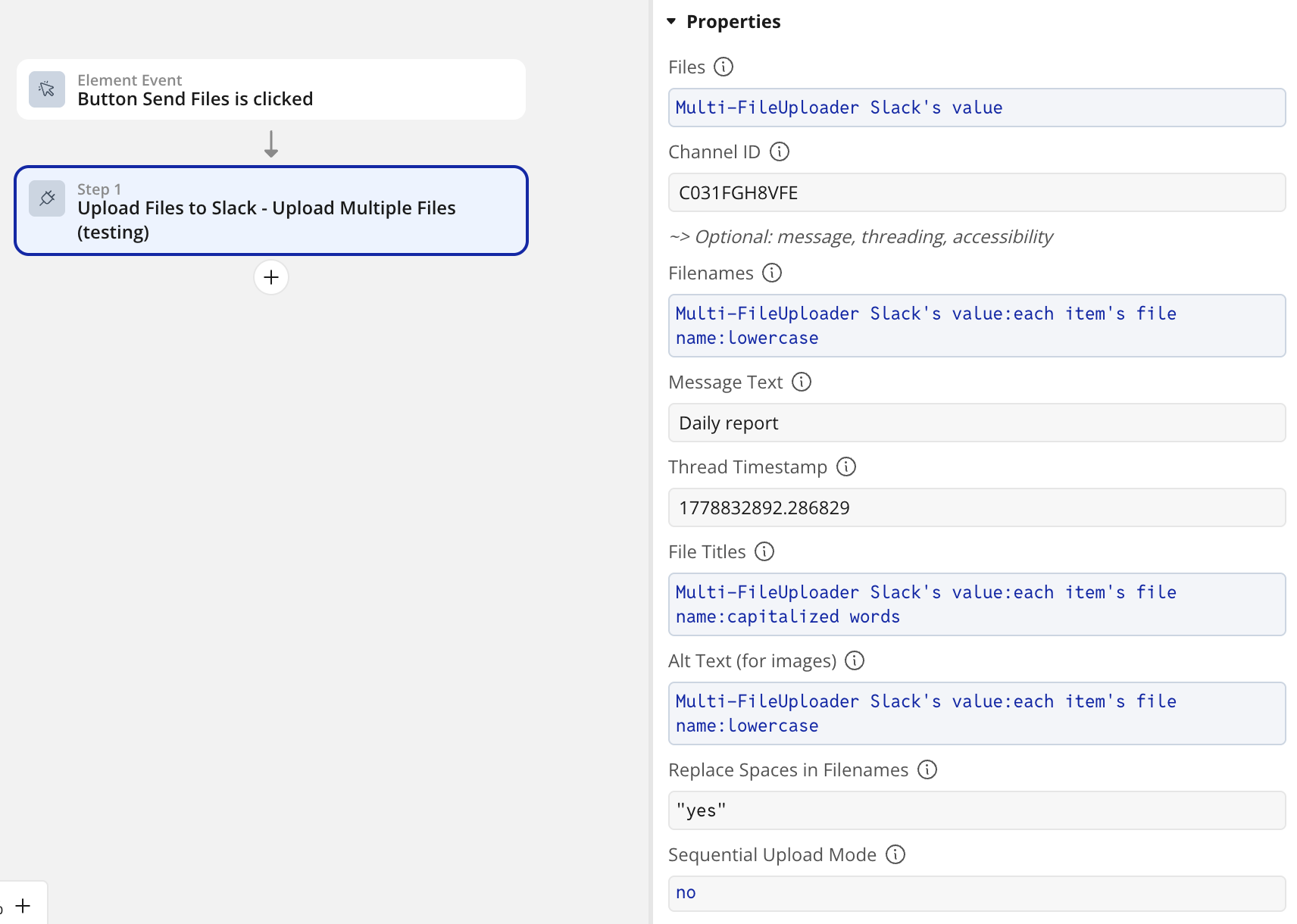 Caption:
 add a short message above the file(s) using Slack’s mrkdwn formatting and emojis.
Thread reply: pass a Thread Timestamp to post inside an existing thread.
Thread chaining for unbounded batches: each call returns the
message_ts of the Slack message it posted. Pass it as the next call’s Thread Timestamp and the new batch lands as a thread reply. Repeat as needed.
Title and alt text per file: override the displayed title (defaults to the filename). Add screen-reader descriptions for accessibility (WCAG, ADA, Section 508, European Accessibility Act).
Sequential Upload Mode: one toggle to handle batches up to ~100 MB combined instead of the 25 MB default. You get the same Slack-side result (one message with N attachments), one buffer at a time in memory.
Filename auto-correction: the plugin automatically trims whitespace, strips control characters and path separators, collapses repeated underscores, truncates to 255 characters while preserving the extension. UTF-8 names with accents and emojis are kept as-is.
What the plugin returnsfile_id and
file_permalink for each uploaded file. Store them in your database to display “View in Slack” links, or to reference the files later via the Slack API.
message_ts for the posted message. Use it to chain replies as a thread, edit the message via
chat.update, or delete it via
chat.delete.
error_code and
error_message on failure. Branch on the code in your workflow: retry on
ratelimited, alert an admin on
storage_limit_reached, drop the channel ID from a user record on
channel_not_found, retry only the failed files on
partial_success.
ReliabilityInputs pre-validated: channel IDs are checked against the expected format before any network call. User tokens (
xoxp-) and webhook URLs are rejected with a clear explanation. Bot tokens (
xoxb-) and rotated tokens (
xoxe.xoxb-) are both accepted.
Slack errors translated to human language: every Slack error code is explained in a paragraph that says what went wrong, what was received, and where in Slack or Bubble to go to fix it. Covers
invalid_auth, missing_scope, channel_not_found, not_in_channel, is_archived, ratelimited, storage_limit_reached, thread_not_found, file_size_limit_exceeded, file_uploads_disabled, alt_txt_too_large, msg_too_long.
Combined-size pre-check: the plugin reads each file’s
Content-Length before downloading and rejects oversized batches in milliseconds.
Partial-success handling: in Sequential mode, if one file fails the others are still posted. The action returns
error_code = partial_success, with the surviving files in
file_ids and the failed names in
failed_filenames.
Structured logs: every error is logged with the
[Upload Files to Slack] prefix.
Try risk-freeThe monthly subscription is prorated by the day. Try the plugin for a few days; if it is not the right fit, cancel and pay only for the days you used.
Documentation and supportWe built the user documentation we wish every plugin had.
If you notice a bug, a weird interaction with another plugin, or there’s a specific business case you’d like the plugin to cover, don’t hesitate to reach out (
contact@betternotcode.com). We happily take any question or improvement request. Plus, we react quickly!
Please note we are not affiliated with Slack Technologies, LLC. Built on Bubble

