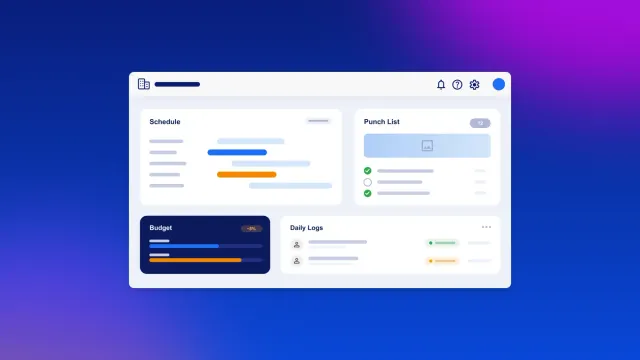
TL;DR: A construction management app centralizes schedules, budgets, documents, RFIs, submittals, punch lists, and daily logs in one place — accessible from the job site on mobile. This guide covers what features to include, how to design your data and roles, and how to build and deploy a working app without writing code.
An RFI sits in someone’s inbox for four days. A punch list photo stays stuck on a foreman’s phone until the fix gets forgotten. Neither problem looks serious on its own, but small gaps like these add up fast, and before long you’re missing deadlines and losing track of the budget.
A construction management app fixes that by giving the office and the field the same live view of a job: schedules, budgets, RFIs, submittals, punch lists, and daily logs, all in one place, on a phone or a desktop.
Off-the-shelf tools like Procore, Buildertrend, and Fieldwire are useful, but they may not be right. Per-seat pricing adds up fast once your whole field crew logs in. You might also have your own processes or projects these tools can’t handle. If a tool doesn’t fit your workflow, your team will be fighting it instead of using it.
This guide covers what a construction management app needs, whether building one makes sense for your team, and how to go from an idea to a working app on web, iOS, and Android.
What is a construction management app?
A construction management app centralizes your schedule, budget, RFIs, submittals, punch lists, and daily logs. The office and the field both get the same view of where things stand. A general project management app (like a spreadsheet or a basic task tool) works differently: It handles simple to-do tracking but isn’t built around how construction actually works.
These are the workflows worth tracking closely, since they’re where things tend to go wrong:
- RFI (request for information): The formal question a contractor sends an architect or engineer when something on the plans is unclear.
- Submittal: A shop drawing or product data sheet a contractor sends the design team for approval.
- Punch list: A list of items that still need fixing before a project closes out.
- Change order: A formal update to a project’s scope, cost, or schedule after work is underway.
- Blueprint markup: Notes and corrections added directly to a plan sheet, usually from the field.
The best construction management apps work on both desktop and mobile, since field crews need to log daily reports, capture photos, and check plans from the job site. They also control what each person can see. Project managers (PMs) get full visibility across a job, while superintendents, foremen, and subcontractors typically get scoped access to just their part of it. Clients sometimes get limited, read-only access, and some teams bring in inspectors with their own view too.
Popular off-the-shelf options are built for different kinds of teams. Procore suits large commercial contractors. Buildertrend fits residential builders and remodelers. Fieldwire focuses on field-level coordination. Contractor Foreman is a budget-friendly pick for small to mid-size contractors.
These four cover most of what teams need. But when your process is different, or per-seat pricing gets expensive once you add your whole field crew, building your own app gives you more control over every feature and every role.
What features does a construction management app need?
Every construction management app needs a few core feature categories that connect the office to the field. Together, they define the data your app needs to track.
- Project and job management: The central record for each project, including job name, location, phases, status, and the assigned team. Every other feature in the app connects to a job record, since it’s what everything else depends on.
- Scheduling and milestones: A visual timeline that lets PMs see what’s due, what’s at risk, and what’s blocking other work. Task dependencies (where one task can’t start until another finishes) matter a lot in construction sequencing.
- RFI management: A formal log for tracking requests for information sent to architects or engineers. Each RFI needs a subject, a due date, an assignee, a response field, and a status so nothing gets lost.
- Submittal tracking: A workflow for routing shop drawings, product data sheets, and material samples through review and approval. Submittals often go through multiple reviewers in sequence before they’re approved.
- Punch lists: A checklist of what still needs fixing before closeout. Field users add items with photos, assign them to a trade, and mark them resolved, usually right from a phone.
- Daily logs: A structured daily report that captures labor hours, crew size, weather conditions, site photos, and notes. Daily logs create a record you can rely on if a dispute comes up, and help PMs track progress.
- Document control: Centralized storage for plans, specifications, contracts, and submittals, with version tracking so field crews always have the current set of drawings. Projects using digital management systems report 61% reductions in document retrieval time.
- Change order management: A workflow for proposing, pricing, and approving changes to the original scope. Each change order should link to a cost impact and an approval chain.
- Job costing and budget tracking: A running view of estimated vs. actual costs by cost code (a category like “concrete” or “electrical” used to organize project costs). This makes it easy to catch cost overruns early instead of at the end of the job.
- Mobile access: Full functionality from a phone or tablet on the job site, with fast photo capture, screens built for outdoor use, and an offline strategy that fits your connectivity needs.
Should you build or buy a construction management app?
Tools like Procore, Buildertrend, and Fieldwire are genuinely good products, and they’re on our list of the best apps for contractors. If one already fits your workflow and your budget, buying makes the most sense, since you won’t have to build or maintain anything yourself.
Building may make more sense when:
- Your workflow is specific to your trade or project type.
- A vendor’s pricing model or user limits don’t fit your rollout plan.
- You need tight internal integrations with your existing systems.
- You want a branded, client-facing experience.
Some teams do both: They use a purpose-built tool for one function (like Fieldwire for plan markup) and build a custom app for the workflows that tool doesn’t handle well, like internal daily reporting or client communication.
| Buy an off-the-shelf tool | Build a custom app | |
|---|---|---|
| Best for | Standard project types with predictable workflows | Unique workflows, specialty trades, or specific integrations |
| Time to launch | Days to weeks | Weeks to months for a focused MVP |
| Cost model | Vendor subscription pricing, varies by provider | Fixed build cost that includes hosting and infrastructure, with lower marginal cost per user |
| Customization | Limited to what the vendor supports | Full control over every feature and role |
| Maintenance | Vendor handles updates | You manage iterations |
If building is the right path for your team, start with your data model. Everything else in this guide builds on it.
Step 1: Map your data model and roles
A data model is the structure of your database: the objects your app stores, like a job, an RFI, or a daily log, and the relationships between them. Getting this right before you build saves you a lot of rework later.
A data type is a category of information your app stores, similar to a table in a spreadsheet. Each data type has fields (for example, a job has a name, address, phase, and status). Here are the core data types to include:
- Job: The central record, including name, address, phase, status, start and end dates, and the assigned PM and superintendent. Every other object in the app links back to a job.
- Company: The general contractor, subcontractors, and the client company, used to filter what each organization can see.
- User: Each person using the app, linked to a company and assigned a role.
- RFI: Request number, subject, question, assignee, due date, response, and status, linked to a job.
- Submittal: Package title, spec section, reviewer list, revision number, status, and linked documents, linked to a job.
- Punch item: Description, location, photo, assigned trade, due date, and status, linked to a job and optionally to a plan sheet.
- Daily log: Date, crew count, weather, hours worked, notes, and photos, linked to a job and a user.
- Schedule task: Task name, start and end dates, dependencies, assigned trade, and completion status, linked to a job.
- Change order: Description, cost impact, approval status, and linked RFIs or punch items, linked to a job.
- Document: File, version number, type (plan, spec, contract), and upload date, linked to a job.
Role-based access controls what each type of user can see and do. Here are a few example roles:
- Project manager: Creates and approves RFIs, submittals, change orders, and budgets, with full read and write access on assigned jobs.
- Superintendent: Creates RFIs, punch items, and daily logs, assigns punch items to trades, and approves daily logs from crew.
- Sub foreman: Creates punch responses and daily logs for their crew, and uploads documents relevant to their scope.
- Client rep: Views dashboards, approved submittals, and change orders, with approval rights if specified.
- Accounting: Views cost objects and exports invoices and job cost reports.
Step 2: Build your core jobsite workflows
Build the workflows your team touches most often first. For most construction teams, that’s RFIs, punch lists, and daily logs.
A workflow is the sequence of actions your app takes when something happens. For example, when a user submits an RFI, the app assigns it to a reviewer, sends a notification, and logs the event in the activity history.
RFI workflow
- Submit: A superintendent or PM creates a new RFI with the subject, question, and due date, then links it to a job and a plan sheet if relevant.
- Assign: The app routes the RFI to the reviewer, usually the architect or engineer, and sends an email with a link.
- Respond: The reviewer opens the RFI, adds a response, and marks it answered, or flags it for a change order.
- Log: The app logs the response date, calculates response time, and updates the RFI’s status on the project dashboard.
- Escalate: If the RFI isn’t answered by the due date, the app sends the reviewer a reminder and notifies the PM.
Punch list workflow
- Create: A superintendent opens the app on their phone and adds a punch item with a description, photo, and location, linked to a job and, optionally, a plan sheet.
- Assign: The app routes the item to the responsible trade, like the drywall subcontractor, and notifies them.
- Respond: The trade foreman marks it corrected and uploads a photo of the fix.
- Verify: The superintendent reviews the photo, then closes the item or sends it back for another pass.
- Close: When all punch items on a job are closed, the app generates a closeout summary for the client.
Daily log workflow
- Open: A foreman opens today’s daily log for their job. The app pre-fills the date, job name, and weather, if a weather API is connected.
- Enter: The foreman logs crew count, hours worked, work completed, materials delivered, and any issues or delays, then attaches site photos.
- Submit: The foreman submits the log, and it routes to the superintendent for review.
- Approve: The superintendent reviews and approves the log, or sends it back with a comment.
- Archive: Approved logs get stored chronologically, searchable by date, job, and crew.
Step 3: Connect your accounting and document tools
An integration links your app to another tool you’re using, like QuickBooks or Google Drive. This keeps you from entering the same information twice, and keeps your records in sync automatically. What’s possible depends on the other platform’s API, but common integrations include:
- QuickBooks or Sage: Send approved change orders, invoices, and job cost line items to your accounting system, and pull vendor and chart-of-accounts data back so cost codes stay consistent.
- Google Drive or Dropbox: Link records in your app to files stored there, so field crews always see the current version without duplicating storage.
- Autodesk Build or Procore (as a document source): Pull in approved plan information so punch items and RFIs reference the current sheets.
- Email and push notifications: Route RFI assignments, submittal approvals, and punch item updates to the right people, so nobody has to log in just to check for updates.
On Bubble, you set up most integrations with the API Connector, which lets your app make outbound calls to external JSON-based RESTful APIs and use the responses as data or workflow actions. The Bubble AI Agent can help draft API calls from a detailed prompt, but you’ll still want to review provider docs, add secrets securely, initialize the calls, and handle any authentication flows it doesn’t support.
Step 4: Test, secure, and publish to web and mobile
Before rolling out to the full crew, test on real devices with a small pilot group (like one superintendent and two or three sub foremen on a single job). Real devices catch what browser testing misses — things like slow photo uploads on bad cell service, and tap targets too small for work gloves.
Check these security basics before you go live:
- Privacy rules: Control who can read or write each type of record at the database level. Bubble configures these rules visually and enforces them server-side. (Already-sent client data isn’t rechecked until the page refreshes, and workflows set to ignore privacy rules bypass them entirely, so double-check those before you publish.)
- Field-level protections: Only accounting and PMs should see sensitive fields, like wage rates, contract values, and internal cost notes. Review mobile app security best practices before launch, since these apps run on job-site devices.
- Security dashboard: Run Bubble’s security dashboard before you deploy. It flags missing privacy rules, exposed fields, unsafe API setups, and leaked credentials. Still, it’s worth reviewing the app manually too.
- Compliance: Bubble’s platform is SOC 2 Type II compliant, which can help if you’re building for a GC or enterprise client with security requirements. That compliance covers Bubble’s infrastructure, not your app automatically, so you’ll still want to configure privacy rules and access controls correctly on your end.
Publishing to web and mobile:
- Web: Bubble hosts your app, and you deploy updates with one click once the issue checker is clear. Custom domains need DNS setup with your registrar, which can take up to 24 hours to propagate.
- Native mobile (iOS and Android): Bubble generates native builds and manages store publishing settings from the editor, no Xcode or Android Studio needed. You’ll still need developer accounts, store assets, credentials, testing, and app-store review. On Android, each new build requires manually uploading the .aab file to the Google Play Console. Content-only changes don’t need a new build or resubmission on either platform.
- Over-the-air (OTA) updates: Minor changes, like text edits or design tweaks, can go live without app-store approval. Bigger feature or platform changes still need a new build and review.
Rolling out to field crews:
Field crews form habits fast, so a clunky early experience can permanently hurt adoption. Start with one pilot job and one superintendent, collect feedback daily for the first two weeks, and fix issues as they come up. Once things are running smoothly, you’re ready to roll out to the rest of the team. Record a short walkthrough (under 10 minutes) of logging a daily report and adding a punch item to get them started, then keep collecting feedback and iterating.
Build the construction management app your team needs
Not every team needs to build their own construction management app. Plenty of workflows fit neatly into an off-the-shelf tool. But when your process is specific enough that off-the-shelf tools start working against you, building puts you back in control.
With Bubble, you start from an AI-generated app, then switch to visual editing to shape the data model, workflows, roles, and web and mobile experience your team actually needs. The next step is to start with your data model and your two or three most critical workflows, then get a pilot crew using it on a real job.
Construction teams lose time every day to tools that don’t fit their workflow. Build the construction management app your team actually needs on Bubble.
Frequently asked questions
What is the difference between a construction management app and general project management software?
Construction management apps are built around industry-specific workflows, like RFIs, submittals, punch lists, daily logs, and change orders, that many general project management tools don’t handle by default. They’re also designed for mixed office-and-field use, with mobile-first interfaces built for job site conditions.
Can a custom construction management app integrate with QuickBooks?
Yes. If the QuickBooks API supports the records you need, you can connect a Bubble-built construction management app using the API Connector and configure outbound REST API calls through Bubble’s visual interface. No code required for supported call configurations.
What mobile features does a construction management app need?
Common mobile priorities include fast photo capture, push notifications for RFI and punch item assignments, jobsite-friendly tap targets that work on a phone held in one hand, and an offline strategy that matches your connectivity requirements. Native mobile apps can offer device-level capabilities such as camera access and push notifications, which may be valuable for field crews. Evaluate offline and performance requirements during real-device testing.
How long does it take to build a construction management app?
A focused MVP for daily logs, punch lists, and RFI tracking can be scoped for a faster build than a full construction management suite, especially if you start with an AI-generated app and refine it visually. Timeline depends on workflow complexity, integrations, data migration, testing, and mobile publishing requirements.
Do you need to know how to code to build a construction management app?
No. Bubble lets you vibe code without the code: Start with AI, then use the visual editor to design your data model, build workflows, set privacy rules, and publish real web and native mobile apps without writing code. You can describe many supported workflow steps to the Bubble AI Agent and review the visual logic it creates, then refine or complete any unsupported steps manually in the visual editor.
Build for as long as you want on the Free plan. Only upgrade when you're ready to launch.
Join Bubble